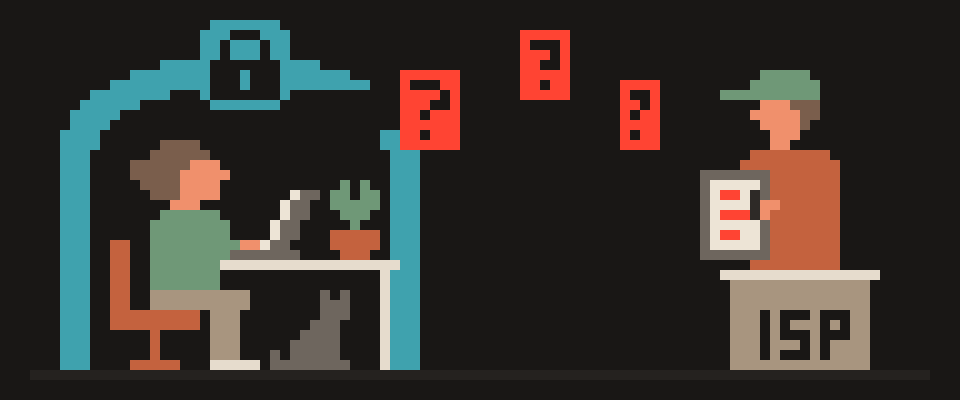
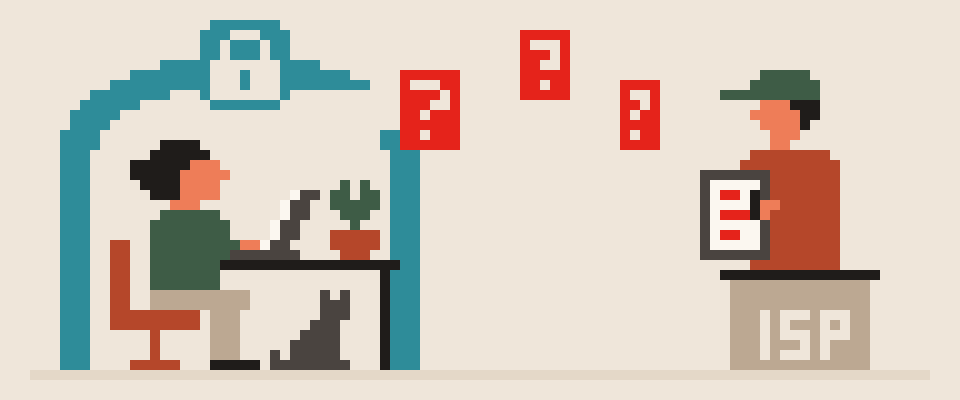
DNS is the service that translates a website's name into an IP address: before your device opens a page, it asks "what is the address for this domain?" By default the question goes to your ISP's DNS server in plain text, so the ISP gets a list of every site you look up, even when the pages themselves are protected by HTTPS.
Switching to a public DNS server, and better an encrypted one, takes that list away from the ISP, sometimes speeds up page loads, and protects against address spoofing on someone else's network. Here's how it works and how to change it on each device. When a site won't open at all, a swapped DNS answer is one of the three usual causes; how to tell it from an outage or a block is in is it down or just me.
plain DNS   you → ISP → site
            └─ ISP sees the name

DoH / DoT   you → encrypted → resolver
            └─ ISP sees only traffic

via VPN     you → tunnel → resolver
            └─ ISP sees no names
How a DNS lookup works
- You type or tap a site.
- Your device asks the DNS server it was given by the router or carrier for the site's address.
- The server answers, and your device connects to that address.
Answers get cached for minutes or hours, so the next lookup is faster. The whole round trip takes milliseconds, but it happens for every domain on a page, and a modern page pulls in dozens of them.
you type a site name
  └─ question: what is its address?
      └─ answer: the address
          └─ browser goes there
nothing opens without this step
What does changing DNS do?
- Privacy from the ISP. The list of domains goes to a service you chose instead. What the ISP sees with and without this is in what can my ISP see.
- Protection against spoofing on shared networks. A coffee shop's or hotel's DNS server can hand you the wrong addresses on purpose. Encrypted DNS takes that off the table.
- Speed. Big public resolvers are often quicker than your ISP's, especially on mobile.
- Filtering. Some services will block ad and malware domains for you at the DNS level.
What changing DNS doesn't do: it doesn't hide your IP address, doesn't encrypt your traffic, and doesn't hide the site name in the TLS handshake (SNI). For that you need a tunnel.
which names you asked for    yes
when and how often           yes
which address asked          yes
what you opened on the page  no
   └─ which is why whose server
      it is actually matters
hides names from your ISP      yes
hides names from new resolver  no
speeds up browsing             sometimes
changes your IP address no1.1.1.1 vs 8.8.8.8: which DNS server to choose
| Server | Addresses | Notes |
|---|---|---|
| Cloudflare | 1.1.1.1, 1.0.0.1 | fast, DoH/DoT, minimal logging by policy |
| 8.8.8.8, 8.8.4.4 | fast, DoH/DoT, logging per Google's policy | |
| Quad9 | 9.9.9.9 | blocks known malicious domains |
| AdGuard DNS | 94.140.14.14 | blocks ads and trackers |
For a home user the speed difference between them is small; choose by policy and by the features you want.
Plain DNS versus encrypted: DoH and DoT
Simply changing the address to 1.1.1.1 moves your query list to a different company, but the queries still travel in plain text and the ISP can read them on the way. DNS over HTTPS (DoH) and DNS over TLS (DoT) encrypt them: the ISP sees only a connection to the DNS service. If you change anything, change to the encrypted version.
plain  question travels in the clear
       anyone on the path reads it
DoH    question wrapped in HTTPS
DoT    question wrapped in TLS
   └─ the question is encrypted,
      not what you open afterwards
How to turn on encrypted DNS
Android. Settings → Network & internet → Private DNS → "Private DNS provider hostname" → type one.one.one.one or dns.google. It covers every app on your phone, over DoT.
iPhone and iPad. There's no built-in switch. Your options are a configuration profile from a DNS provider (Cloudflare, AdGuard and others publish them), or a VPN app that carries DNS inside the tunnel for you.
Windows 11. Settings → Network & internet → Wi-Fi or Ethernet → Properties → DNS server assignment → Edit → Manual, IPv4, enter 1.1.1.1 and 1.0.0.1, DNS encryption → "Encrypted only (DNS over HTTPS)".
macOS. System Settings → Network → your connection → Details → DNS → add the addresses. Encryption requires a configuration profile.
Browser on a computer. Chrome: Settings → Privacy and security → Security → "Use secure DNS". Firefox: Settings → Privacy & Security → "DNS over HTTPS". Protects the browser only.
Router. Put the public addresses in the WAN or DHCP settings and every device in your house picks them up. Not every router can encrypt it, though.
tunnel handles names itself
  └─ leave the system setting alone
you set a resolver by hand
  └─ it can go around the tunnel
when unsure, choose automatic
How to check which DNS server you use
On a site such as dnsleaktest.com, run the extended test: the list of servers that answered your queries shouldn't include your ISP's. With a VPN on, the servers should belong to the VPN service; the leak check is in is my DNS leaking.
[ ] leak test shows the resolver you set
[ ] VPN on: test shows the tunnel resolver,
    not the ISP
[ ] names still resolve, pages still loadDNS and VPN together
With a VPN on, your DNS queries should go inside the tunnel to the VPN's resolvers. A third-party encrypted DNS set in your browser will fight that: those queries go off to a different service outside the tunnel. The rule is simple: either the VPN manages DNS (the usual case), or the browser's DoH is routed through the tunnel. Not both in different directions. Encrypted DNS at the system level remains a useful fallback for the moment the tunnel drops.
Every platform names these settings differently. Ask about the one in front of you.
Help me turn on encrypted DNS on my device.

Device: (Android 14 / iPhone / Windows 11 /
macOS / my router, model).
Do I also use a VPN: (yes / no).
Resolver I want: (name it, or ask me to choose).

Give me the exact menu path on my system, and
tell me whether it will conflict with my VPN.
If my system does not support it, say so plainly
instead of suggesting a similar-sounding option.
In short
- Default DNS hands your ISP a list of sites; encrypted DNS removes it.
- 1.1.1.1 and 8.8.8.8 are the usual picks, and what separates them is policy, not speed.
- Two taps on Android, a profile on iPhone, a network setting on Windows 11.
- DNS isn't a substitute for a VPN: the IP and SNI stay visible. Together they cover nearly everything.
404 VPN runs DNS inside the tunnel on its own resolvers, and the kill switch blocks traffic if the tunnel drops. Details on the how it works page; get started here.