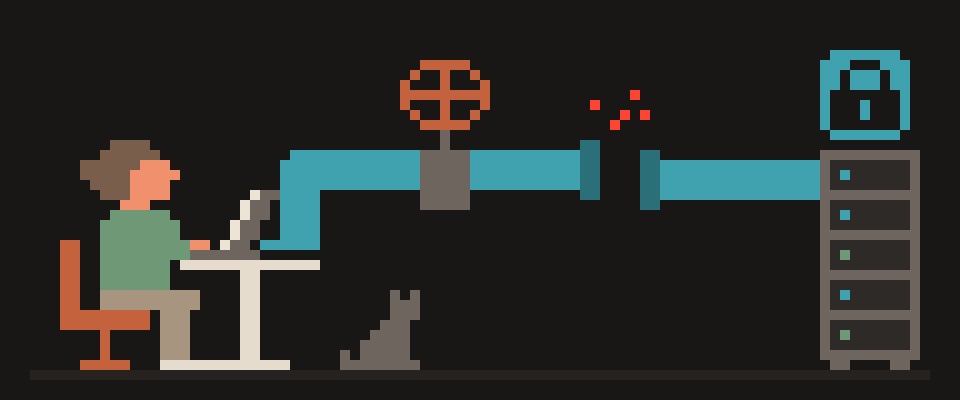
To VPN into your home network is to carry your home internet in your pocket: from a hotel or a coffee shop your phone behaves as if it were on the living-room Wi-Fi, so the NAS, the cameras, the printer and the desktop are reachable without exposing any of them to the internet.
It's the opposite of a consumer VPN service, which takes your traffic away from home to a shared exit elsewhere; here the exit is your own router. The setup is one evening if your router or NAS supports WireGuard, and the main obstacle isn't the software but whether your ISP gives you a reachable address.
Below: the three places the server can live, the address problem and its fixes, the mesh alternative for when nothing else works, and the short list of mistakes that turn "my private network" into "everyone's network".
[ ] public IPv4 or IPv6
[ ] DDNS name instead of digits
[ ] router can act as a server
[ ] one port open in the firewall
[ ] a key per device
    └─ behind CGNAT? stop, you need a VPS
Why set up a home VPN
Reaching files on the NAS without syncing them to a third-party cloud. Watching your own cameras without the manufacturer's cloud in the middle. Using the home printer or the desktop's remote screen from the road. Routing all your traffic through home when you're on a network you distrust, so the coffee shop sees one encrypted connection and your home ISP sees the same browsing it always sees. And having your own exit IP in your own country, which some services prefer over shared addresses; that trade-off is in VPN vs VPS.
reach your NAS from a hotel
print to the home printer
look at a camera without a cloud
use your home address abroad
   └─ inbound, not outbound: the
      opposite of a normal VPN
Where to run the home VPN server
The router. Best option when the firmware supports WireGuard: it's always on, it sits at the network edge, and nothing else needs to run. Many current consumer routers and most open firmware do. Whether to put the tunnel on the router or on each device, and what it costs the router's CPU, is in VPN on router vs device.
The NAS. Most NAS systems ship a VPN server package. Fine if the NAS is always on, and it usually is. One port forward on the router points at it.
A small box. A single-board computer or an old laptop running WireGuard. Cheapest, most flexible, one more thing to keep updated.
In all three cases the server needs a public key for each client, and each client needs the server's key and address. How the keys and configs look is in How to set up WireGuard; the WireGuard config generator produces client files you can scan as a QR code.
router      simplest, already on
NAS         easy with the right package
small box   most flexible, more upkeep
Reaching home without a static IP: DDNS and CGNAT
For your phone to reach home, home needs an address the internet can reach. Three cases:
Public IP that changes. The common one. Use dynamic DNS: the router updates a hostname whenever the address changes, and clients connect to the hostname. Most routers have it built in.
Public IP that never changes. Rare and easy: use it directly.
No public IP at all. Increasingly common: the ISP puts you behind carrier-grade NAT and shares one address among many customers, or gives you IPv6 only. Incoming connections can't reach you. Fixes: ask the ISP for a public address, sometimes a paid option; use IPv6 if both ends have it; or flip the direction with a mesh tool or a tiny rented box that both ends connect out to.
The last case is exactly where mesh tools earn their keep: your devices punch out to a coordination service and find each other, no incoming port needed. The trade-offs, including who sees your network's map, are in WireGuard vs Tailscale.
public address    reachable directly
carrier-grade NAT nothing gets in
  └─ ask for a public address, or
     rent a small relay
dynamic DNS handles a changing one
Port forwarding: the one port to open
Only the WireGuard port, forwarded from the router to whatever runs the server, and nothing else. WireGuard doesn't respond to packets that aren't signed by a known key, so the port is silent to scanners. Don't forward the NAS's web interface, the camera's port, or remote desktop "just in case"; that is the pattern behind most home-network break-ins, and it's precisely what the tunnel exists to avoid.
Full tunnel or split
Clients can send everything through home, or only traffic destined for the home network. Full tunnel: the coffee shop sees one encrypted connection, your home ISP sees your usual browsing, and your public IP is your home one; slower, since everything makes the round trip. Split: only home addresses go through the tunnel, the rest goes out locally; faster, but the coffee shop network sees your ordinary browsing. On an untrusted network, full tunnel; on a trusted one, split. What split tunneling does and where it leaks is in What is split tunneling.
[ ] one key per device, never shared
[ ] only the tunnel port open
[ ] firmware kept current
[ ] a fallback way in if locked out
[ ] AllowedIPs narrowed to home only
Home VPN mistakes that expose your network
- Forwarding ports other than the tunnel's.
- Leaving the router's remote administration on.
- One shared key for all devices, so a lost phone means re-keying everything; give each device its own key and revoke it alone.
- Never updating the router or NAS firmware.
- Putting the tunnel on a NAS that also runs a dozen exposed apps.
- Skipping a kill switch on the phone when the whole point was to hide traffic from the coffee shop; what it does is in What is a VPN kill switch.
[ ] connects on mobile data, not home Wi-Fi
[ ] the NAS opens by its private address
[ ] names resolve, not just raw addresses
[ ] a router reboot does not break it
[ ] no other port answers from outside
How to check your home VPN works
From mobile data, not from the home Wi-Fi: connect, open the NAS by its private address, then open What Is My IP. In full-tunnel mode it should show your home ISP; in split mode, the carrier. Try again from a coffee shop: that is the network the setup was for.
Every firmware does this differently, and a mistake can lock you out of your own router.
Help me run a VPN server at home.

Router: (make, model, firmware).
Address from my ISP: (public / behind CGNAT /
not sure).
What I want to reach: (NAS / cameras / printer /
browse through my home connection).
Devices I will connect from: (which).

Give the setup order for my firmware, including
port forwarding and what to put in AllowedIPs on
the client.
Say how to check I have not exposed anything
extra, and how to recover if I lose access to
the router itself.
What this doesn't replace
Your home ISP still sees everything your home sees, now including your browsing from the road. Nobody is in a crowd: your exit IP is yours alone. And a home tunnel gives you no other countries. For privacy from the ISP and for a shared exit elsewhere, a privacy service is the other tool, and the two coexist on one phone with no conflict, as long as only one is active at a time.
404 VPN is that other tool: a privacy service with VLESS in its apps and WireGuard configs for Istanbul and Marseille from the dashboard, DNS inside the tunnel and a kill switch in the Android app, taking your traffic to a shared exit in another country rather than back home. Many people run both: home tunnel for the NAS, service for everything else. Start on the home page.